
Welcome to Zefty
Zefty is Canada's only SaaS platform that generates Electronic Fund Transfer (EFT) payment files fully compliant with the ACP005 and EFT 1464 standards. Our solution seamlessly integrates with Zoho Books to automate your vendor payments while ensuring every file meets the strict requirements of all major Canadian banks. This guide will walk you through the simple setup process to get you processing compliant payments in minutes.
Already using Zefty? Open the in-app help centre for the step-by-step guide to connecting Zoho Books.
In-app help centreZefty connects seamlessly with Zoho Books to automatically sync and generate compliant vendor payment files. All provider payments are synced and will appear directly in Zoho Books.
Organization Setup
Begin by completing your organization profile:
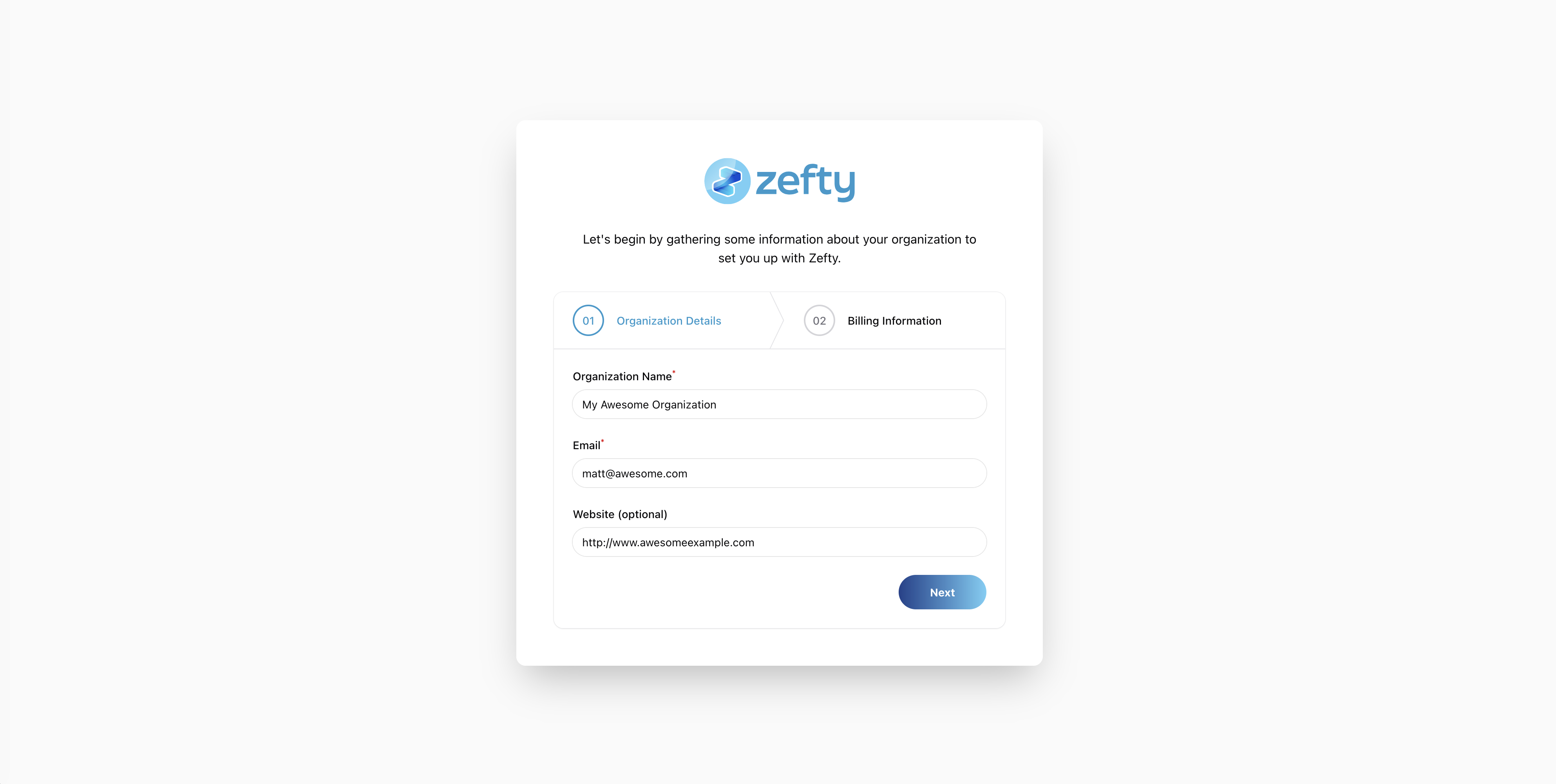
- Fill in the following required information:
- Company Legal Name - Must match your banking records exactly
- Company Email - For account verification and notifications
- Company Website - For customer support and marketing
- Company Address - Including postal code
- Phone Number - For verification purposes
- Choose your Province/Territory of operation
- Click Next to proceed
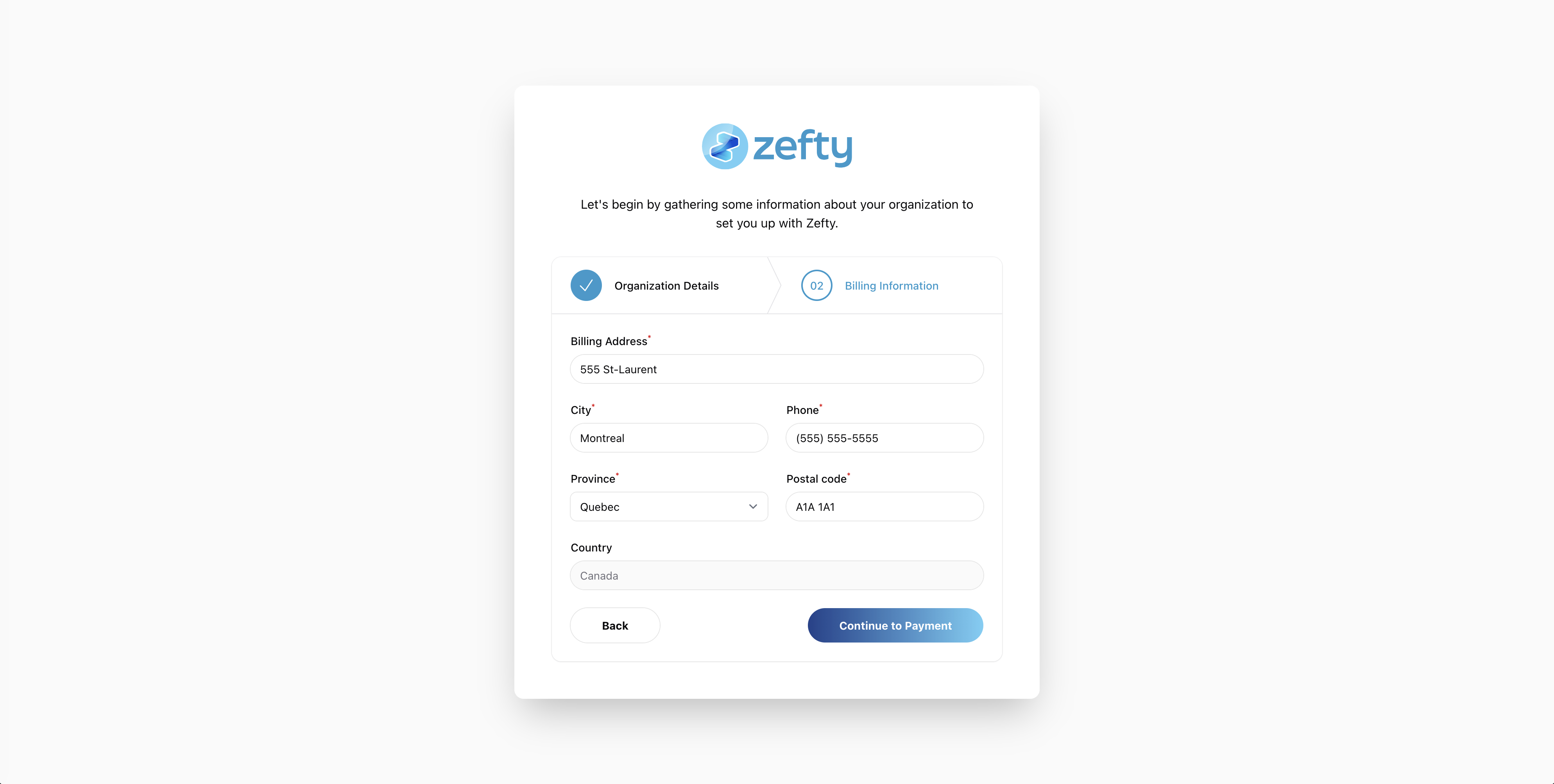
Note: This information must match your bank account details for compliance purposes.
Secure Payment
Complete your subscription through our secure Stripe payment gateway:
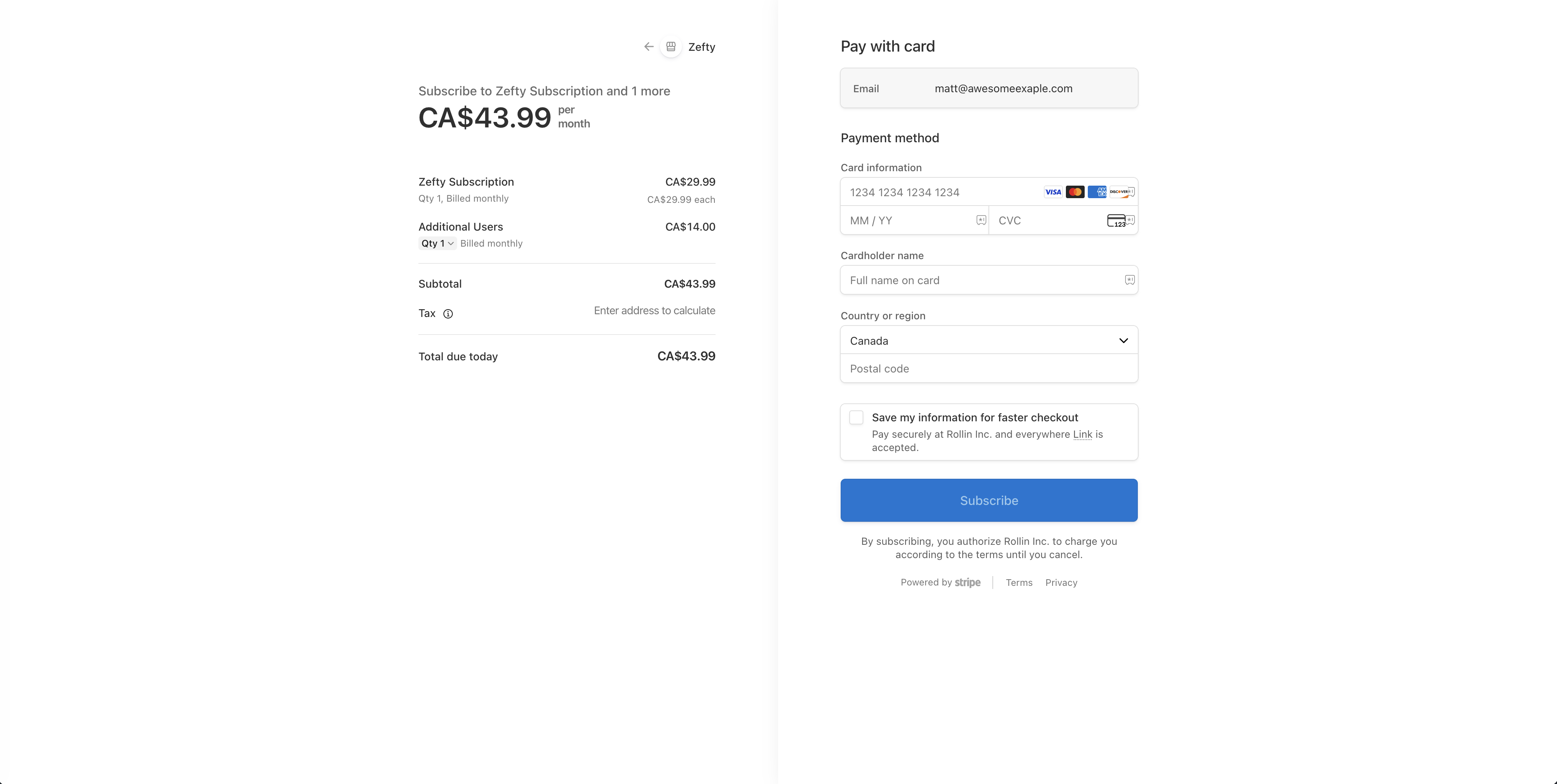
- Enter your payment information:
- Credit card details are processed securely through Stripe
- All major credit cards accepted (Visa, Mastercard, Amex)
- Review your subscription summary:
- Verify the number of seats selected
- Confirm monthly total
- Note: You can modify seats anytime from your account settings
- Click Subscribe to activate your subscription
Banking Information
Select your bank from the list of supported Canadian institutions:
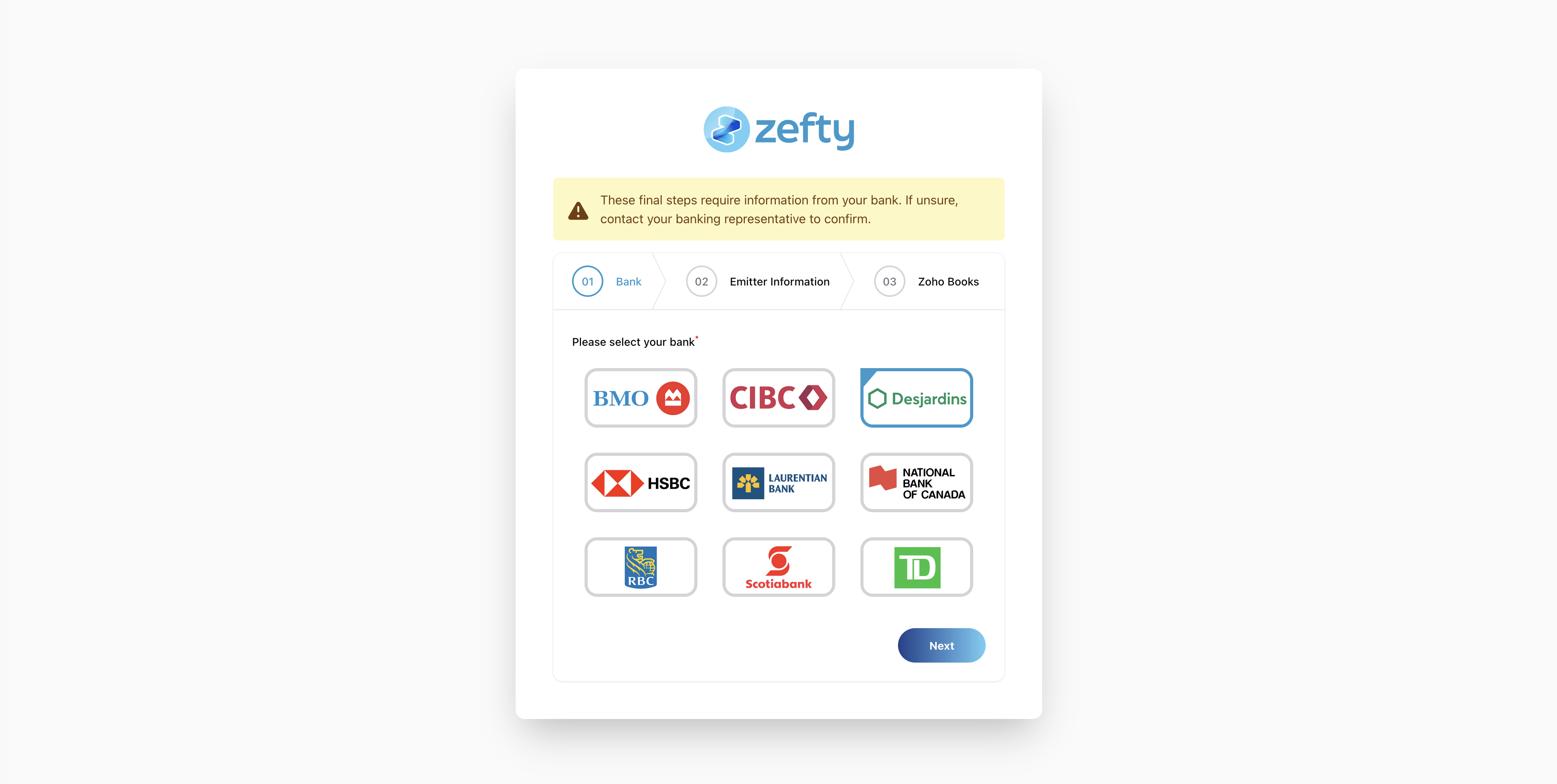
Enter your organization's EFT payment originator information:
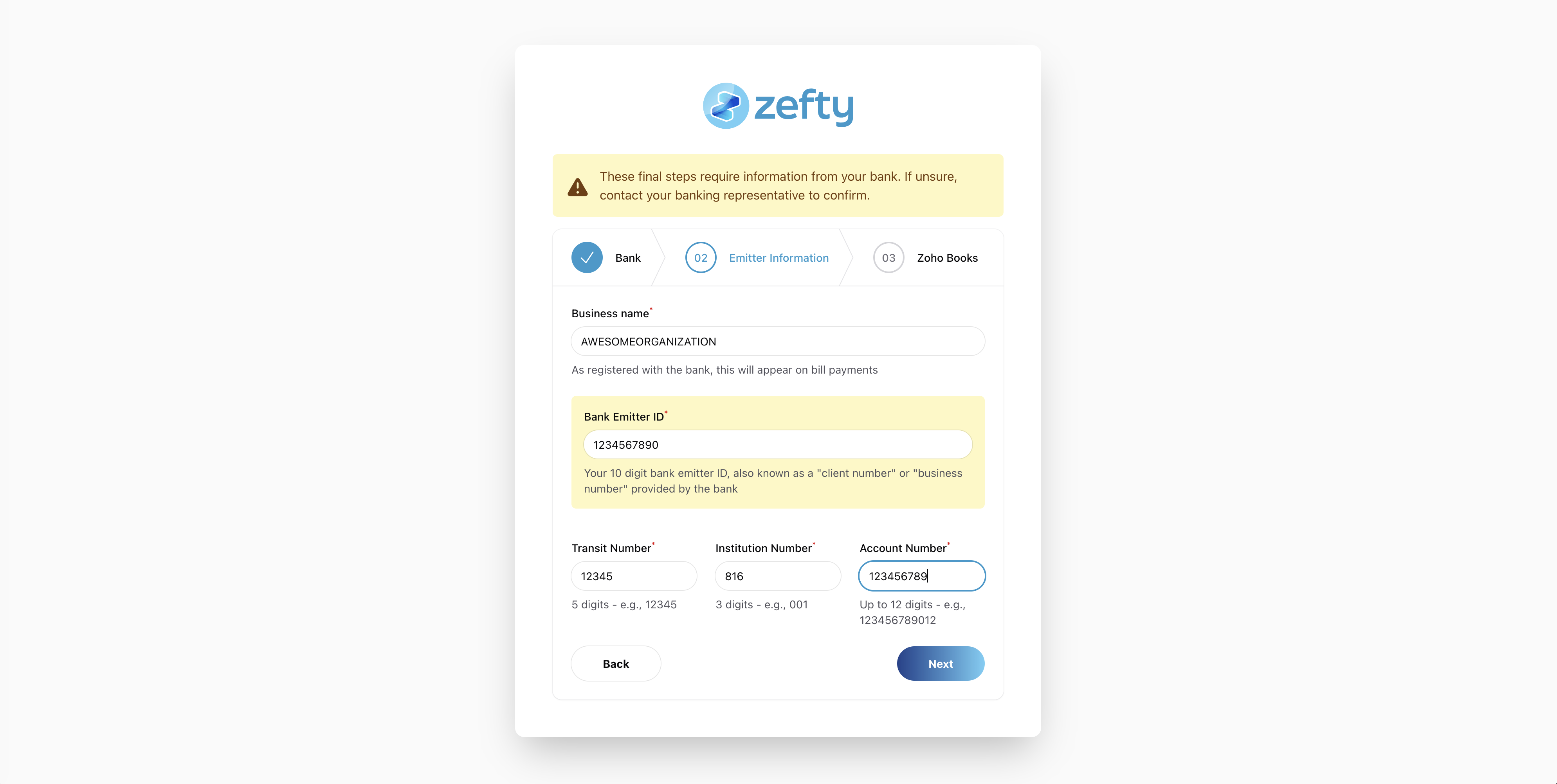
- 10-Digit Emitter ID:
- This unique identifier is provided by your bank for EFT 1464 file transfers
- Format: ######### (10 alphanumeric characters, no spaces or dashes)
- Contact your bank's representative if you don't have this ID
- Associated Account Details:
- Transit Number: 5-digit branch number (e.g., 12345)
- Institution Number: 3-digit bank code (e.g., 001 for BMO, 003 for RBC)
- Account Number: Your business account number (7-12 digits)
Important: The emitter ID must be active and authorized by your bank for EFT origination. Contact your business banking representative if you need to activate EFT services.
Connecting Zoho Books
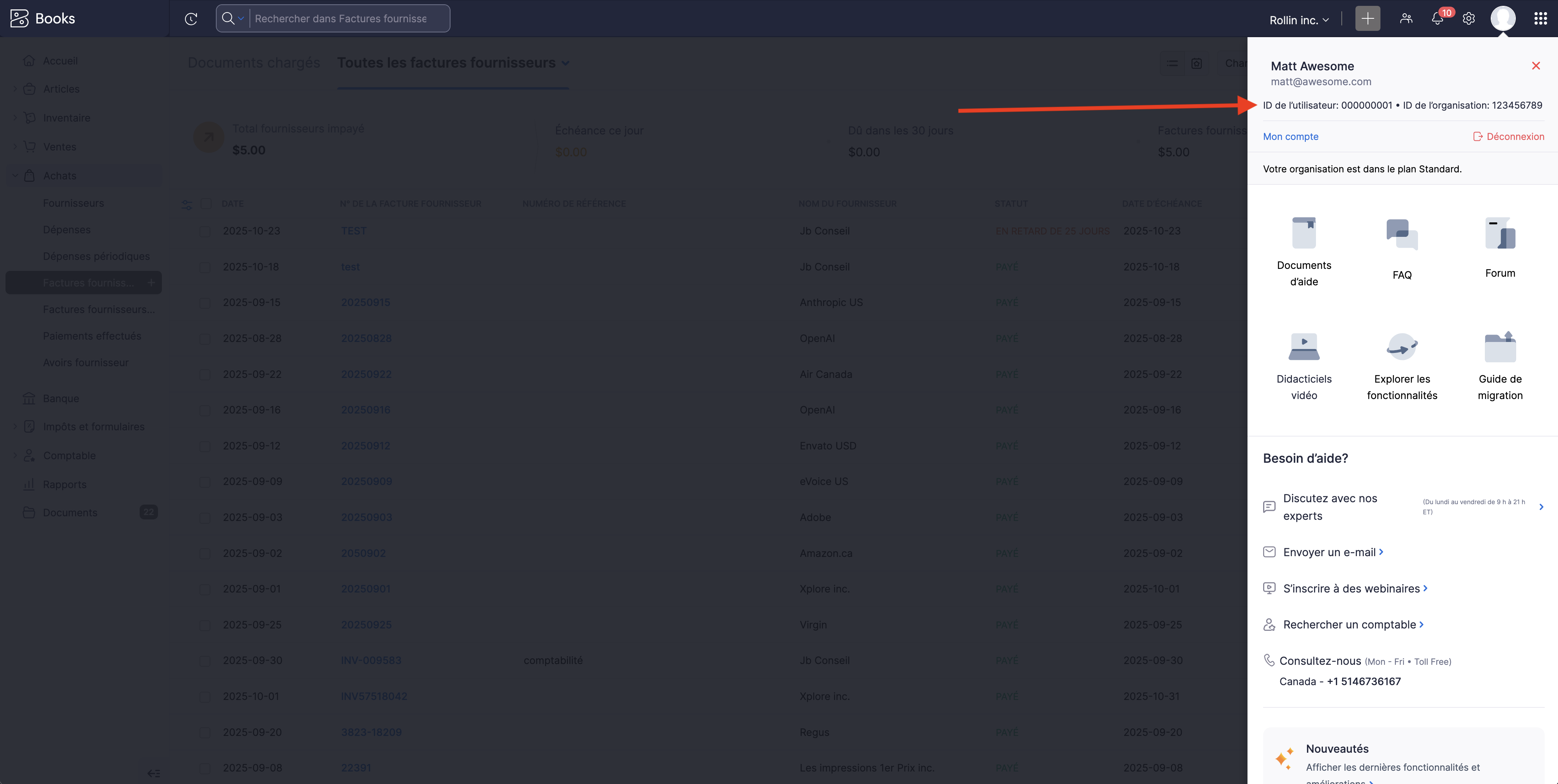
- Locate Your Zoho Books Organization ID:
- Log into your Zoho Books account
- Click on the Settings gear icon
- Select Organization Profile
- Copy your Organization ID (displayed at the top)
- Access the Zoho API Console:
- Open a new browser tab
- Navigate to:
- https://api-console.zoho.com/ (for US/Global)
- https://api-console.zohocloud.ca/ (for Canada)
- Zoho.com (US/Global):
- URL in Zoho Books shows: books.zoho.com
- API Console: https://api-console.zoho.com/
- Most common for all users
- Zoho.ca (Canada):
- URL in Zoho Books shows: books.zoho.ca
- API Console: https://api-console.zohocloud.ca/
- For some Canadian-specific Zoho accounts
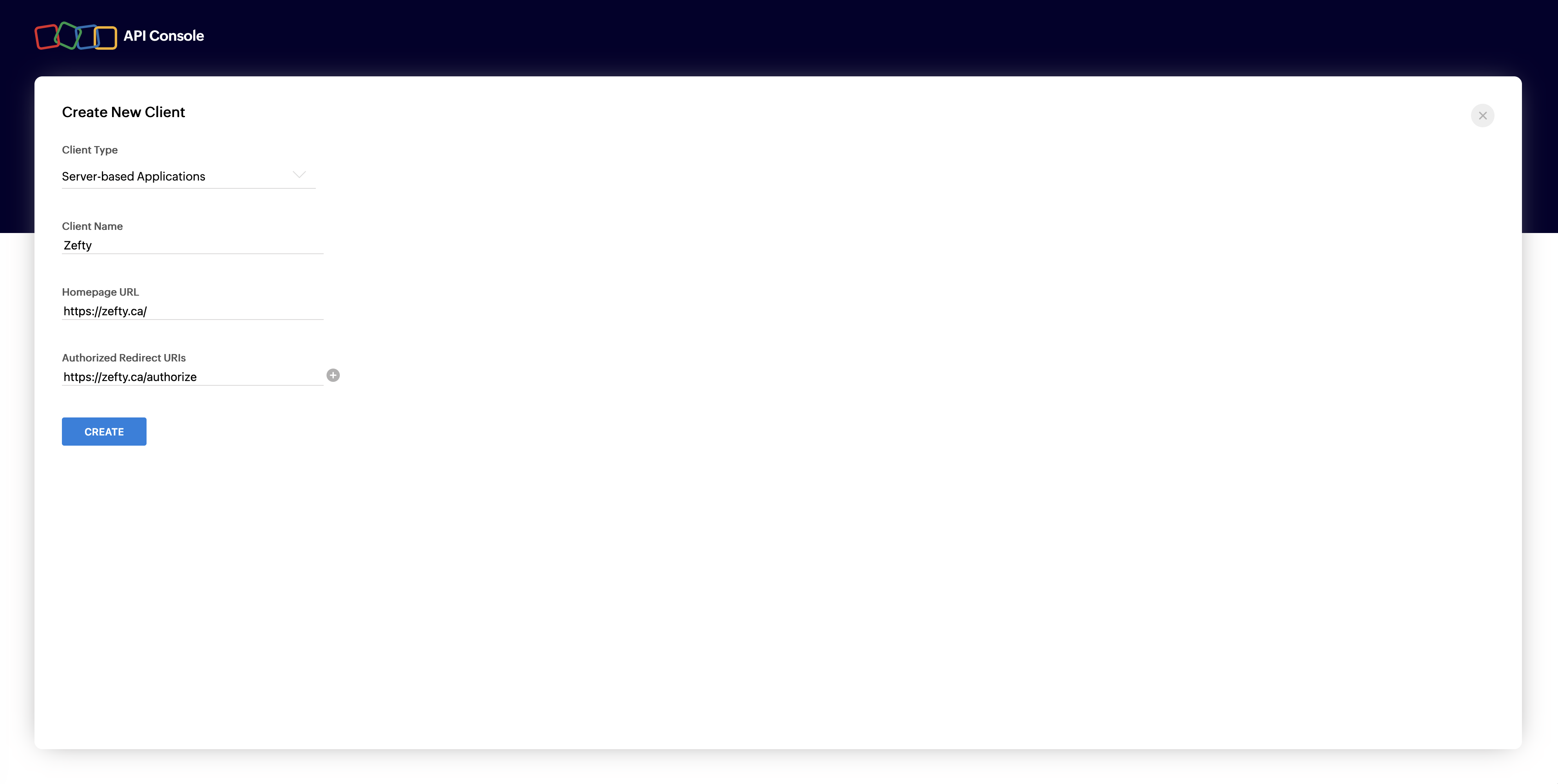
- Create a New Server-based Application:
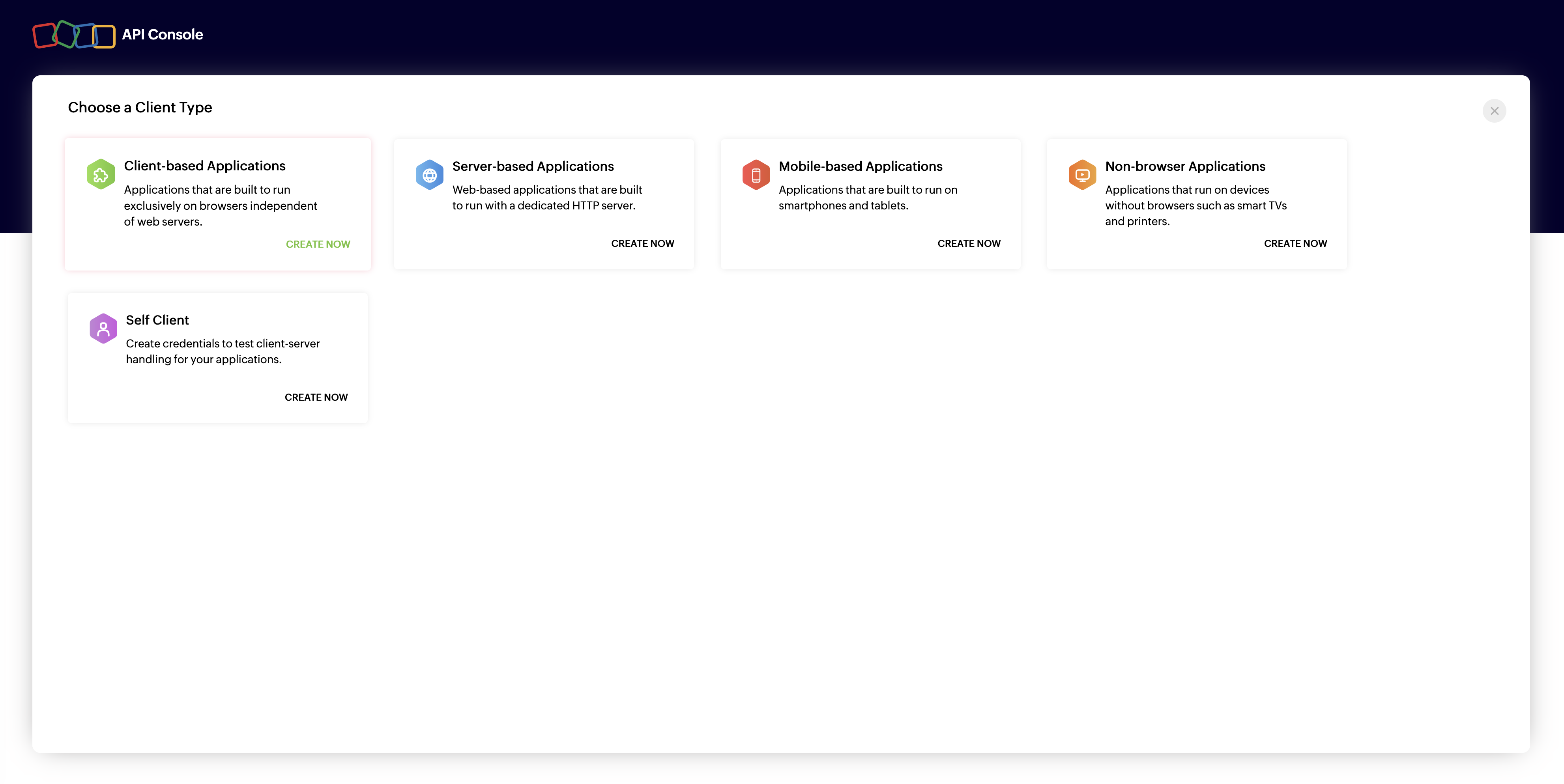
- Click Add Client or Create New Client
- Select Server-based Applications
- Enter the following details:
- Client Name: Zefty
- Homepage URL: https://zefty.ca/
- Authorized Redirect URL: https://zefty.ca/authorize
- Click Create
Important: Ensure you're using the correct Zoho API Console for your region:
Tip: Check your Zoho Books URL - the domain extension (.com or .ca) indicates which API console to use.
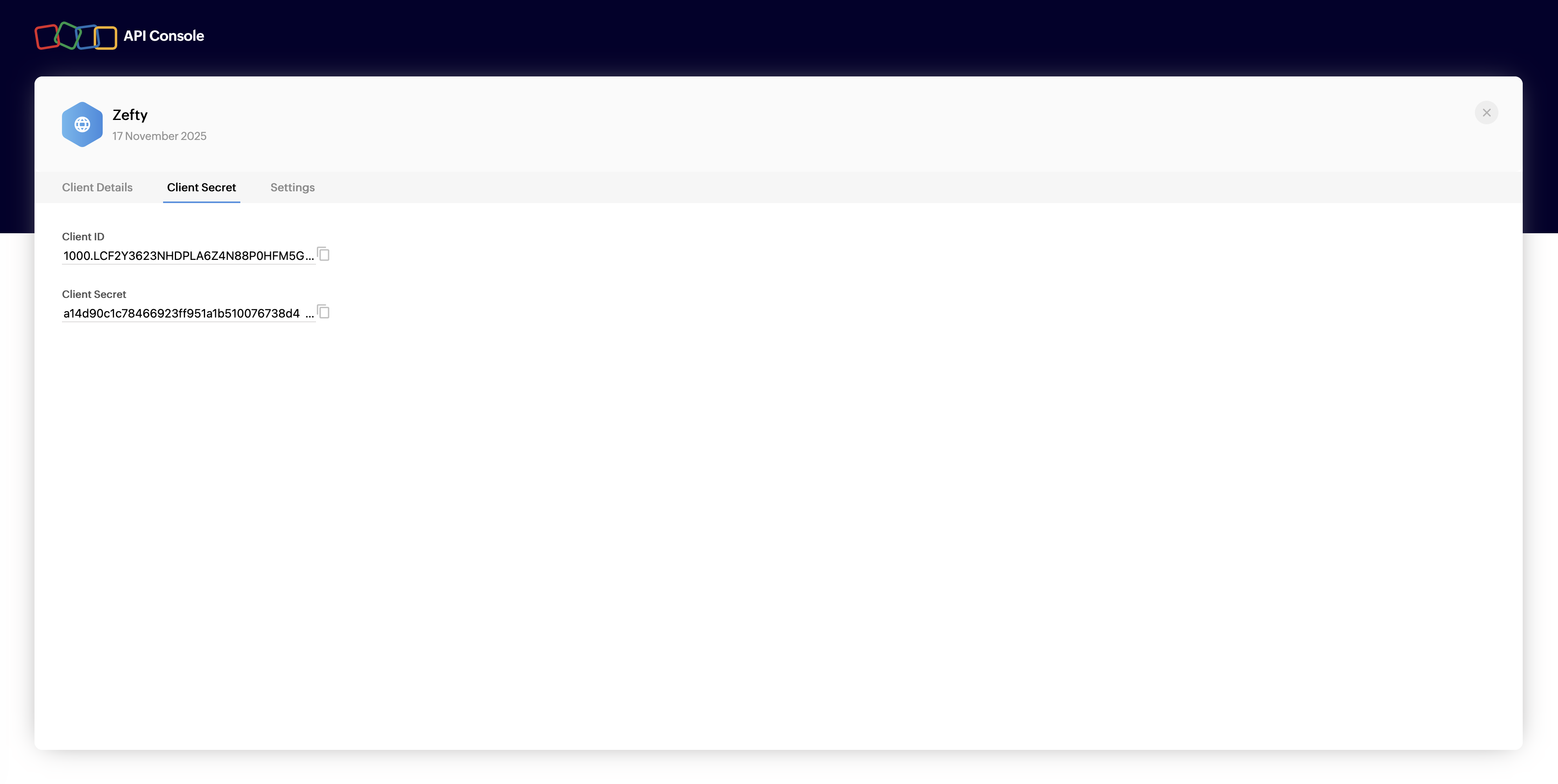
Copy the Client ID
- After creating the application, you'll see the Client Details page
- Locate the Client ID (a long alphanumeric string)
- Copy this entire ID
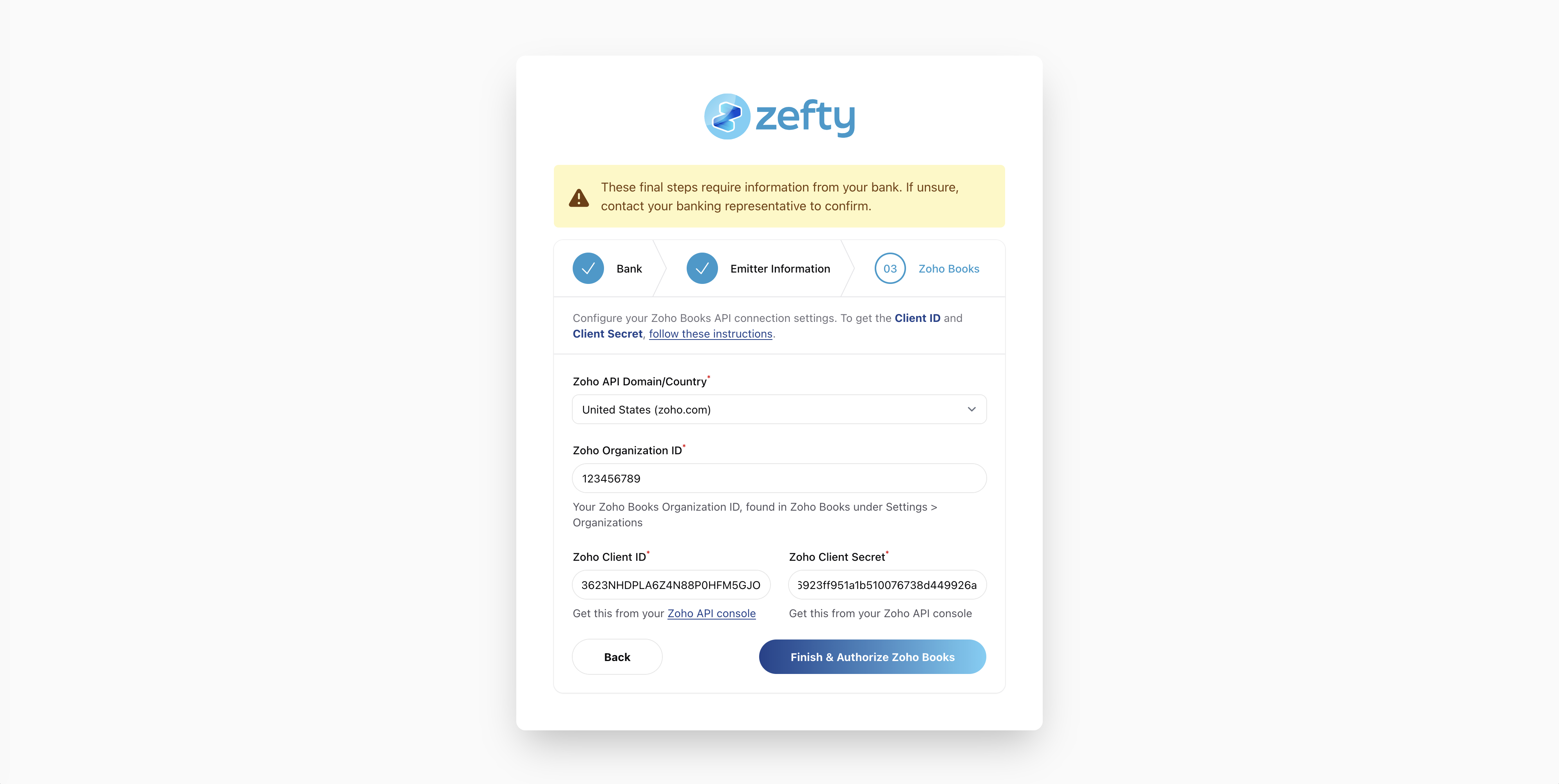
- Return to the Zefty setup page
- Paste the Client ID into the Zoho Client ID field
5B) Copy the Client Secret
- On the same Client Details page in Zoho API Console
- Locate the Client Secret (keep this confidential)
- Copy the entire secret string
- Return to the Zefty setup page
- Paste the Client Secret into the Zoho Client Secret field
6) Final Authorization
Complete the integration with one-click authorization:
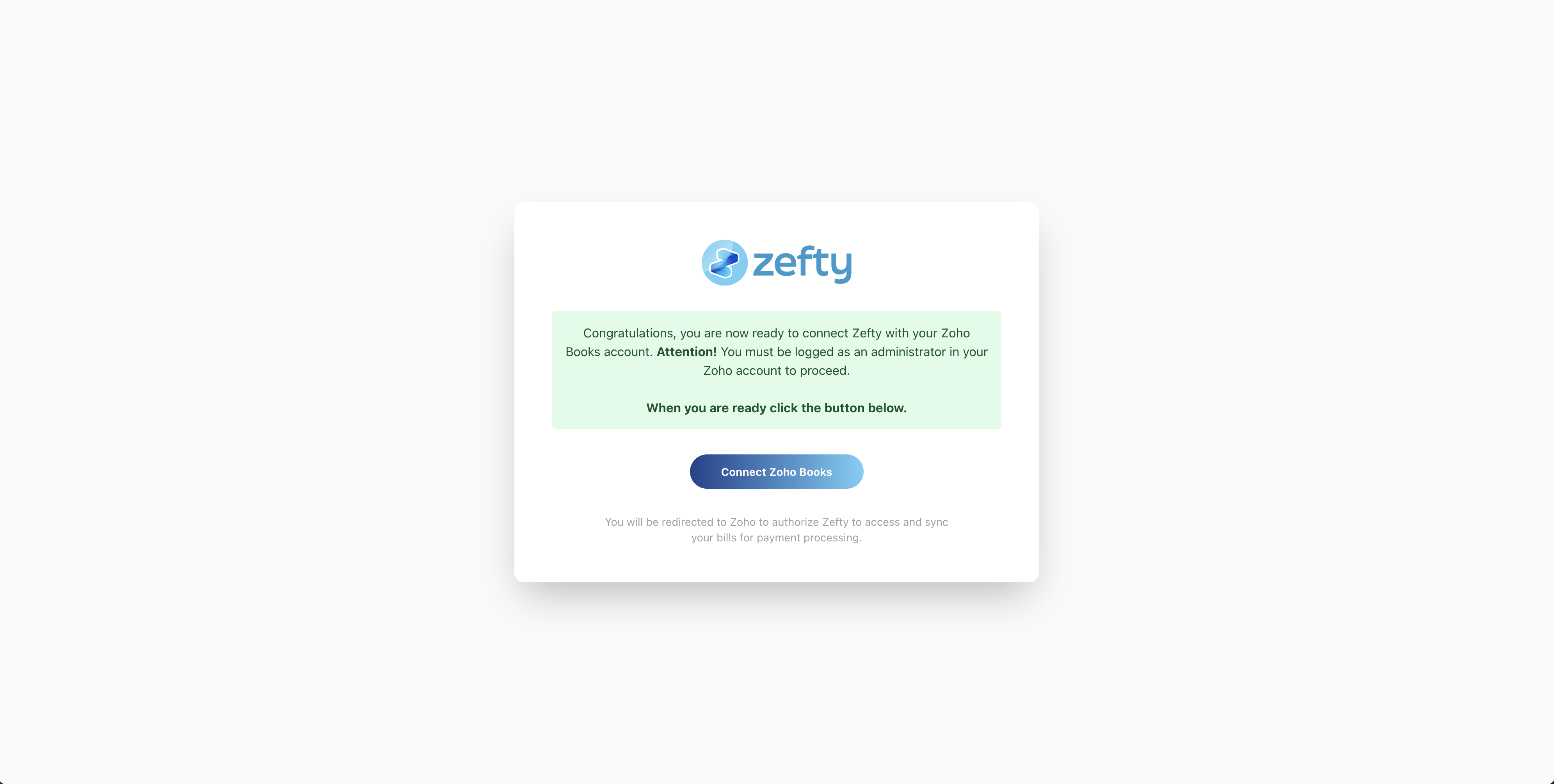
- After entering your Client ID and Secret, click Authorize Zoho Books
- You'll be redirected to Zoho's authorization page
- Review the requested permissions:
- Read access to Bills and Vendor Payments
- Write access to create payment records
- Read access to Vendor information
- Click Accept to grant Zefty access to your Zoho Books data
- You'll be automatically redirected back to Zefty and your bills will start syncing automatically.
Important: Authorization Failure Recovery
If the authorization process fails or gets interrupted, you MUST delete the app you created in the Zoho API Console and start over. Zoho only allows the authorization process to be completed once per application.
To recover from a failed authorization:
- Go back to the Zoho API Console (api-console.zoho.com or api-console.zoho.ca)
- Find the "Zefty" app you created
- Click the Delete icon to remove the application
- Start the process again from Step 5 - Create a new client application with the same details
- Use the new Client ID and Client Secret for authorization
This is a Zoho security limitation - each app can only complete the authorization process once. If you encounter any issues, our support team can guide you through the recovery process.
Congratulations! Your Zefty account is now fully configured. You can immediately begin generating ACP005-compliant EFT payment files directly from your Zoho Books bills.
Need help? Contact our support team at [email protected].